Free Download Your Desired Softwares and Apps From GetintoPC
How to Download and Install OBS Studio For Free
Hello friends. in this article, I will guide you how to download and install OBS Studio for free.
What is OBS Studio
OBS Studio 2025 is a completely free software that doesn’t require any fees. It offers everything without any watermarks. Overall, it’s a complete package for those who want free software for live streaming, gaming, and most importantly, for recording PC or laptop screens and creating the best full-HD videos. The best software for that is OBS Studio, as discussed in this article. I will guide you on how to download and install it on your system. OBS is a great software and is completely free. It provides everything without any watermarks. It provides all the videos. So stay tuned until the end. Don’t skip any of the videos. I’ll explain everything clearly in this article. And if you want to learn how to do screen recording, then you can read how to do screen recording using OBS. So, let me take you through the rest of the steps, where I’ll guide you on how to download and install OBS Studio.
Steps to Download and Install OBS Studio for Free
Step 1: Search for OBS Studio
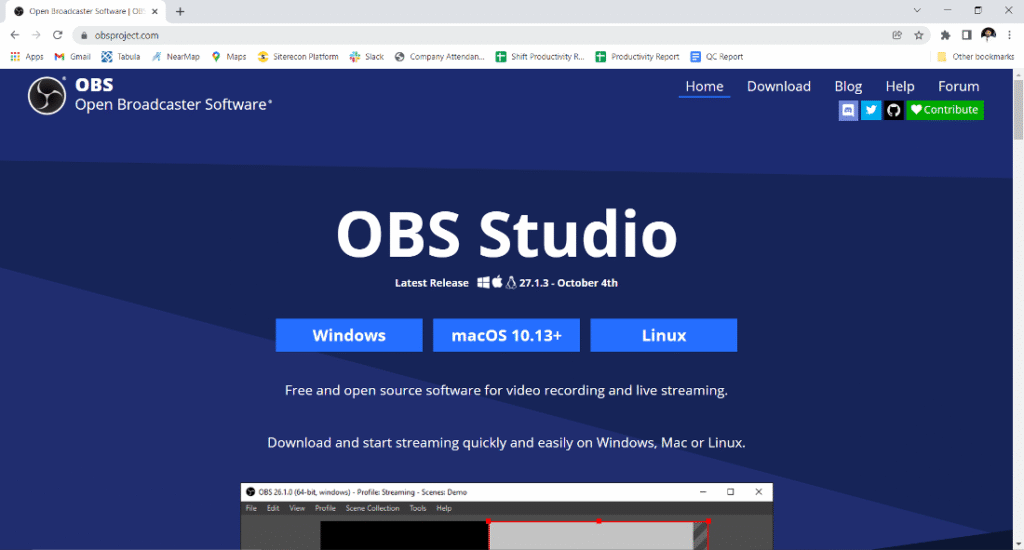
So, friends, as always, first go to Google and type OBS Studio. As soon as you see the OBS official website obsproject.com , click on it to visit the site
Step 2: Choose the Right Version
After clicking “OBS Studio Website” this page will open. You’ll see three options here: Apple, Windows, and Linux. Of these, I think you mostly use Windows. So, click on “Windows” and ignore other versions. Click on the one that best suits your criteria.
Step 3: Download the Installer
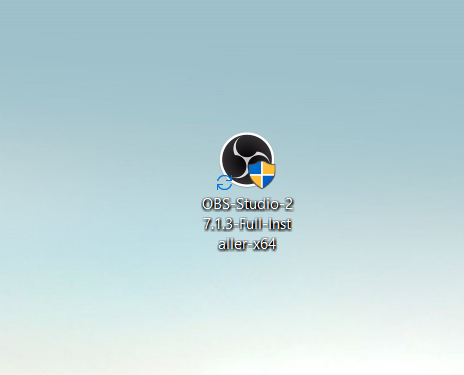
After clicking on “Windows,” you can also download the zip file here. You can download the zip file or the installer. We don’t need it. So I clicked on the download installer. Now, as soon as you click, the download starts here. So, it will take a little time to download. Whatever the time required, that means your internet speed and processor speed, whatever it takes to download, that’s the time it takes.
Step 4: Begin Installation
After that, when the download is complete, look for a folder that will appear here. This folder will appear. So you can go to the folder and click on it from there. You can also do it by double-clicking here. So, I double-clicked it. After double-clicking, it takes a little time.
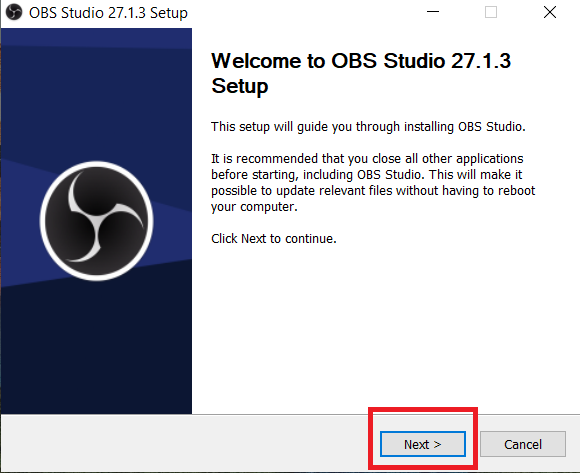
Then this page comes up. Now click Next. Then click Next. It is the location where you want to install it. You can enter any location of your choice. Okay? Now click Next again. So, now it has started installing. It directly says Installing. So this also takes a little time. After it’s halfway through, it’ll take a little time because there are some small or large files. Where there are larger files, it’ll take a little longer, and where there are fewer, it’ll take less. So, it takes a little time, so allow it to take as much time as your system requires, because this is software. Your laptop needs to be in good shape to work. If yours is very good, it’ll be done quickly. If yours is normal, it’ll be done slowly. Now, look, it’s picked up speed and is working well. It’s going very fast, and it’s almost done.
Step 5: Finish Installation and Launch OBS
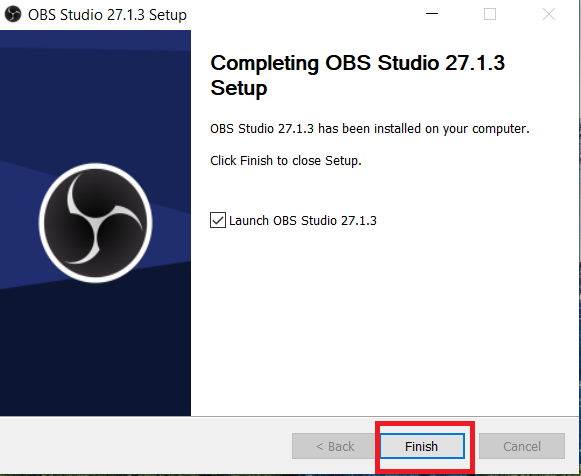
Close it. Then, in both of these options, you’ll want to keep the tick on the first one. Then, click Finish. After finishing, the Launch option will appear. You’ll need to launch it directly, and as soon as you launch, OBS Studio will open.
Step 6: Setup and First Launch
You can choose any of the three options it asks for. Before that, a message will appear, telling you to update to the latest version. There’s also an option for a reminder letter. You can also send a reminder letter. So, we don’t need to update it right now; otherwise, it will take extra time. So, we’ll do it by clicking Remind Me Later. Click on Reminders. It will go back. From the three options shown here, select one you feel like doing. If you don’t understand it, just cut it and go back. This way, the full OBS page will open in front of you.
Congratulations!! all done, you have successfully installed OBS Studio on your Windows system.